
View Menu
The view menu contains options to control how nodes are presented within the OctaneRender® Node Editor.


EDITOR MENUS
Select Sub Nodes
With this option you can select all the children of any selected node.
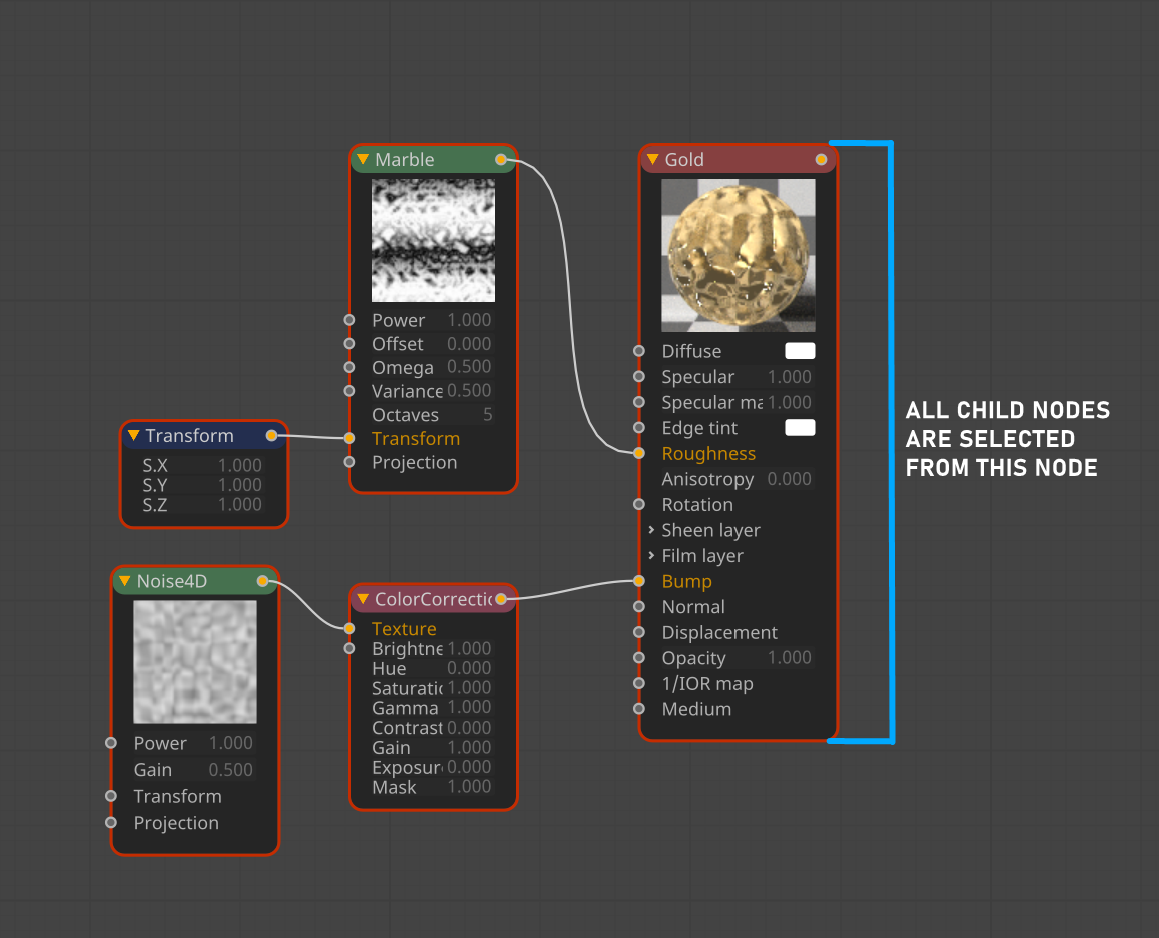
SELECT SUB NODES
Auto Arrange Selected
This option will automatically arrange selected nodes to a grid.
Child Selection
Any child nodes connected to the selected node will be automatically selected with this option enabled.
Minimize Node
You can minimize or maximize any node for more comfortable working. There are three ways to do so:
1- by using node's triangle button
2- double click the title area.
3- or select this option from the view menu
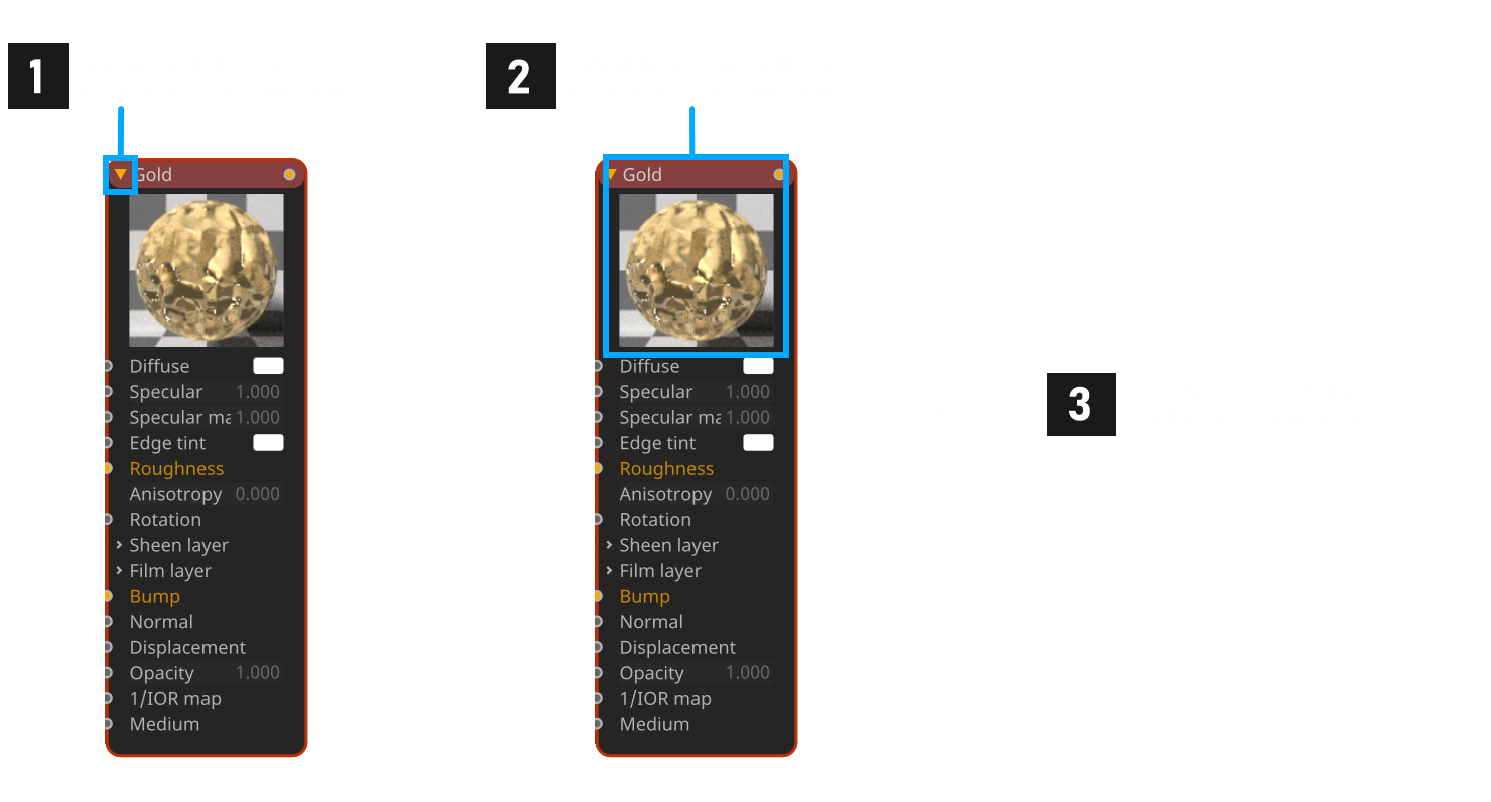
minimize/maximize node
Frame All
This option will fit all of nodes into the editor viewing area.
Frame Selected
This option will cause the selected node to fill the editor viewing area.
Zoom
Used to zoom in the node editor. You can also use mouse + keyboard combinations as described in the Interface menu.